Getting started
Create your account
- Go to app.tiptrack.co.uk/signup and sign up with your email address.
- Open the confirmation email and click the link. Check your junk folder if it hasn't arrived within a few minutes.
- Enter your yard's trading name. TipTrack creates your yard and your 30-day free trial starts.
Your yard's web address
Your yard gets its own address, made from its name, for example demo-metals.tiptrack.co.uk. Owners and admins can change it to something shorter in Settings › Yard › Web address.
Add to the home screen
On a phone or tablet, open your yard's address in the browser, then use Share › Add to Home Screen (iPhone and iPad) or ⋮ › Add to Home screen (Android). TipTrack then opens like an app.
Yard details and sites
Go to Settings › Yard and fill in the details that appear on tickets, receipts and the register:
- Scrap metal dealer's licence number, the council that issued it, and whether it is a site or collector's licence
- Yard address and phone number
- Ticket number prefix, for example DY-, and the next number to use
- Receipt settings (see Receipts)
Sites
Add each site you operate in Settings › Sites. For each site, say whether it holds an environmental permit or works under exemptions:
| Site type | What you enter | Reported to DEFRA? |
|---|---|---|
| Permitted site | Environmental permit number | Yes, every load received |
| Exempt site | Exemption references | No, records are kept in TipTrack only |
Your team
Owners and admins can invite staff from Settings › Team. Enter the person's email address and choose a role. They get an email with a link that works for 7 days and only for that email address.
| Role | Can do |
|---|---|
| Owner | Everything, including adding or removing owners and admins. Every yard must keep at least one owner. |
| Admin | Settings, prices, DEFRA connection and inviting staff. Can't change owners or other admins. |
| Site manager | Day-to-day running: tickets, sellers, check-in links and corrections to seller names and addresses. |
| Clerk | Tickets and check-ins. Can add sellers and update phone numbers and vehicles, but not names or addresses. |
Anyone can leave a yard from their own account. To stop someone's access straight away, remove them from the team list.
Metal grades and prices
Your yard starts with a list of common grades such as heavy iron, light iron, dry bright copper wire, brass and cast aluminium. Edit them in Prices.
- Set a price per tonne for each grade. When you change a price, the old one is kept in the price history and existing tickets don't change.
- Each grade carries its EWC waste code (for example 17 04 05 iron and steel) and its recovery code (usually R4). These are sent to DEFRA with each load.
- Switch off grades you don't buy so they don't clutter the ticket screen.
Sellers and ID checks
The Scrap Metal Dealers Act 2013 says you must verify a seller's full name and address from documents before you buy, and keep a copy. TipTrack records this for you.
- Open Sellers › New seller, or accept a check-in (see below).
- Choose individual or business. For a business, add the company name and, if they carry waste, their waste carrier registration.
- Take a photo of the ID and proof of address, or pick one from the photo library.
- Tick that you've seen the original documents.
Changing seller details
Clerks can update phone numbers, email addresses and vehicles. Changing a name, address or business details needs a site manager, admin or owner. Every change is logged with who made it and when.
Seller check-in
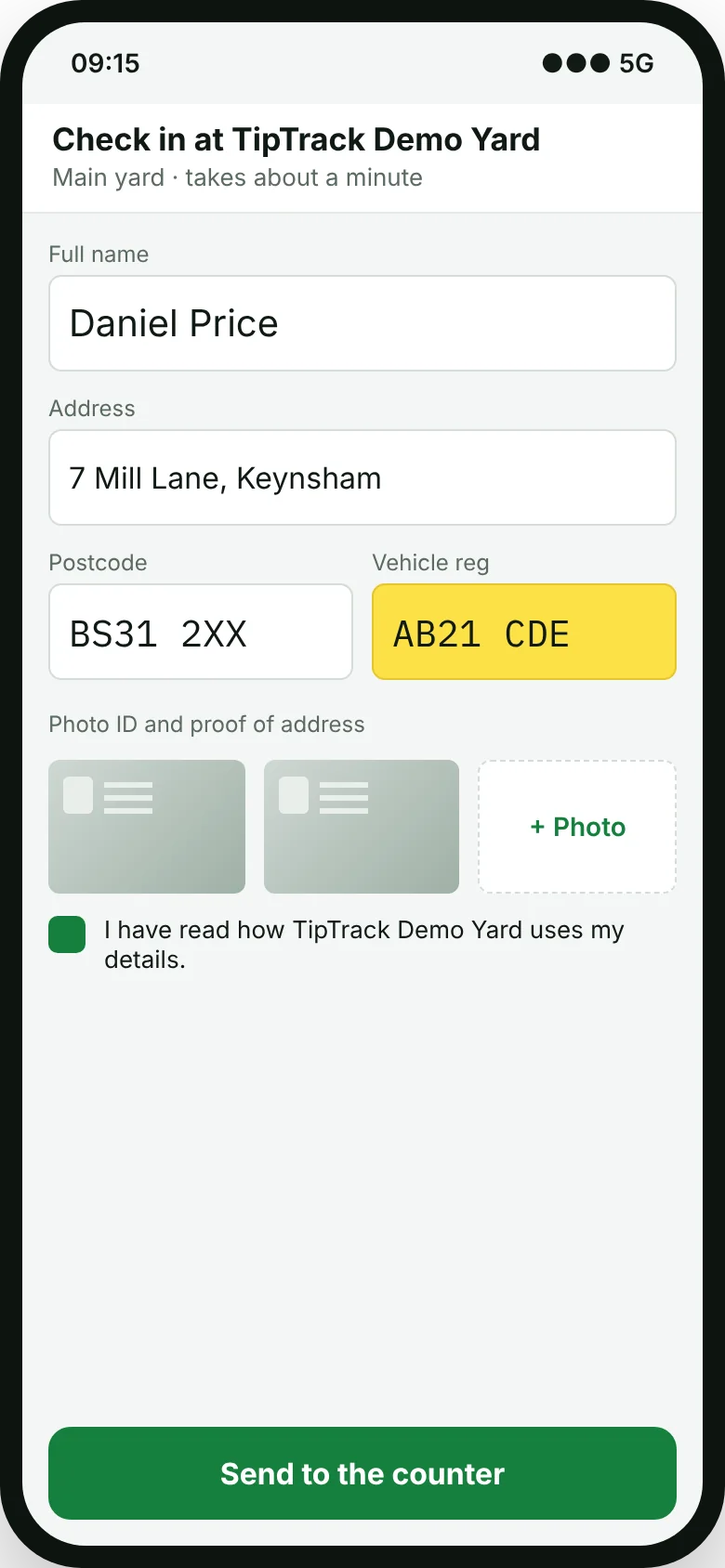
- Go to Check-ins › Links and create a link, for example "Gate tablet" or "Counter poster".
- Open the link on a tablet at the gate, or print its QR code poster for sellers to scan with their own phone.
- The seller enters their name, address, postcode and vehicle, photographs their ID and agrees to your privacy notice.
- The check-in appears on the Check-ins screen straight away. Turn on sound to hear new arrivals.
- Check the original ID in person, then press Check ID & accept. If they've sold to you before, link the check-in to their existing record.
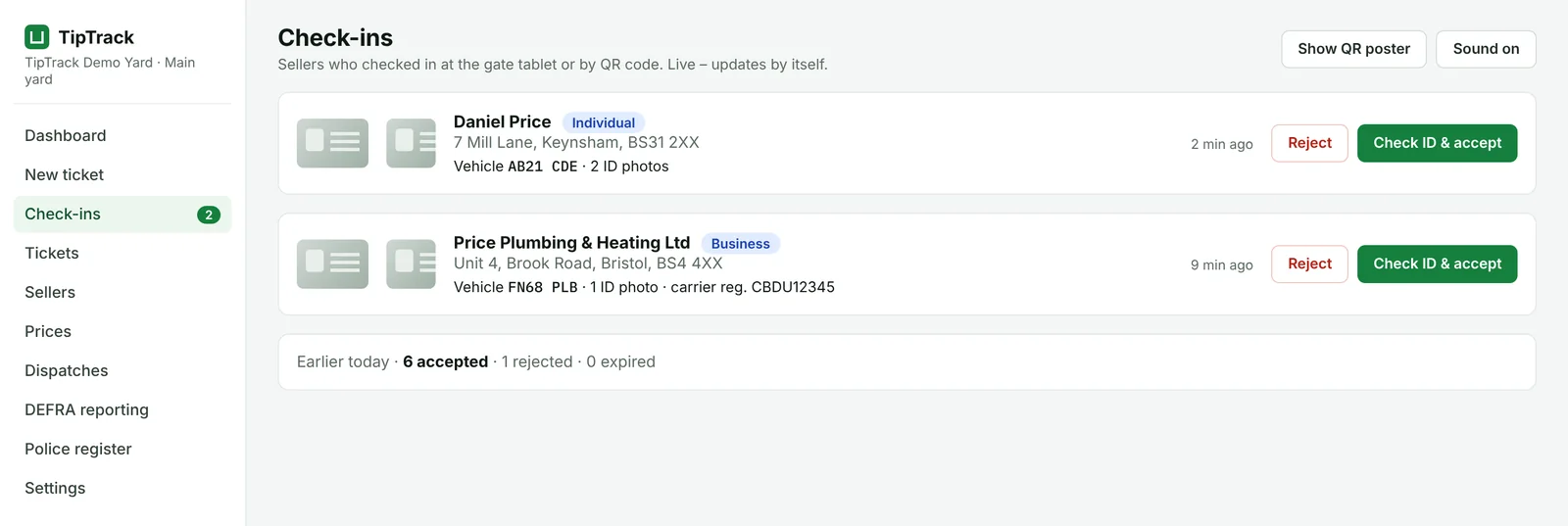
Check-ins not handled within 24 hours expire. You can switch a link off at any time, for example if a poster is taken.
Weighbridge tickets
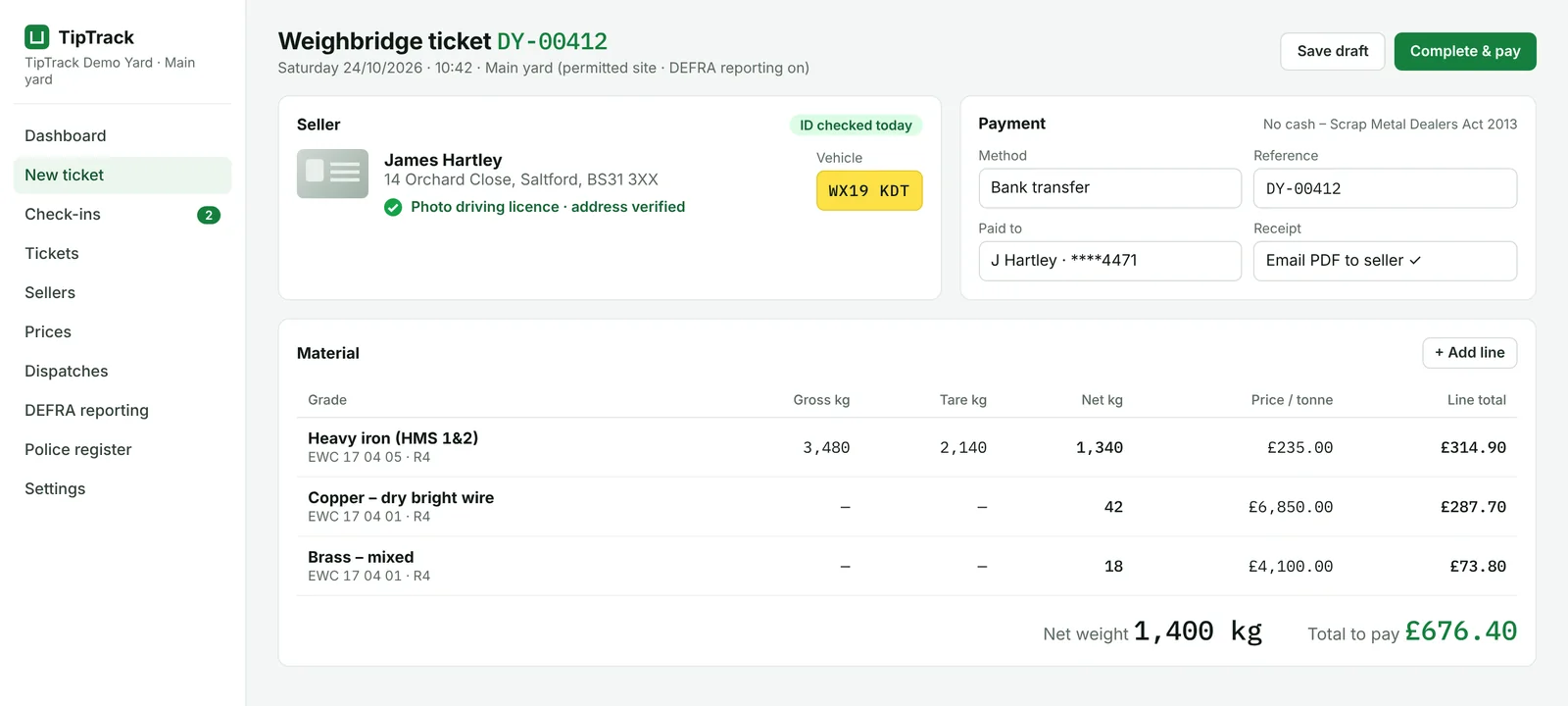
- Press New ticket and choose the seller. Their ID check and vehicles are shown.
- Add a line for each grade. Enter gross and tare for loads weighed on the bridge, or just the net weight for the platform scales.
- TipTrack works out the net weight and line price from your price list. You can override a price on a line if you agree a different one.
- Choose how you're paying: bank transfer or cheque. Cash isn't allowed for scrap metal and isn't offered. Enter the payment reference.
- Press Complete & pay. The ticket gets its number, the receipt is emailed if that's switched on, and at a permitted site the load is queued for DEFRA.
On a phone or tablet
Use New ticket on a phone for weighing out in the yard. It has the same steps with large buttons and boxes.
Receipts
In Settings › Receipts:
- Turn Email receipts to sellers on or off.
- Set the reply-to address so sellers' replies come to your yard.
Receipts go to sellers with an email address on their record. The email has a short summary, with the full ticket attached as a PDF. You can also press Download PDF on any ticket to print it or send it yourself. Every receipt sent is listed on the ticket.
DEFRA digital waste tracking
From 1 October 2026, permitted and licensed waste sites in England and Wales must report each receipt of waste to DEFRA within two working days, counting from the day after it arrives. TipTrack does this from your tickets.
Connect once
- Register your organisation with DEFRA's digital waste tracking service on GOV.UK and get your API code.
- In TipTrack, an owner or admin goes to Settings › DEFRA and pastes the code. It is stored encrypted and can't be read back by anyone at your yard or at TipTrack.
- Check each permitted site has its permit number entered.
Each day
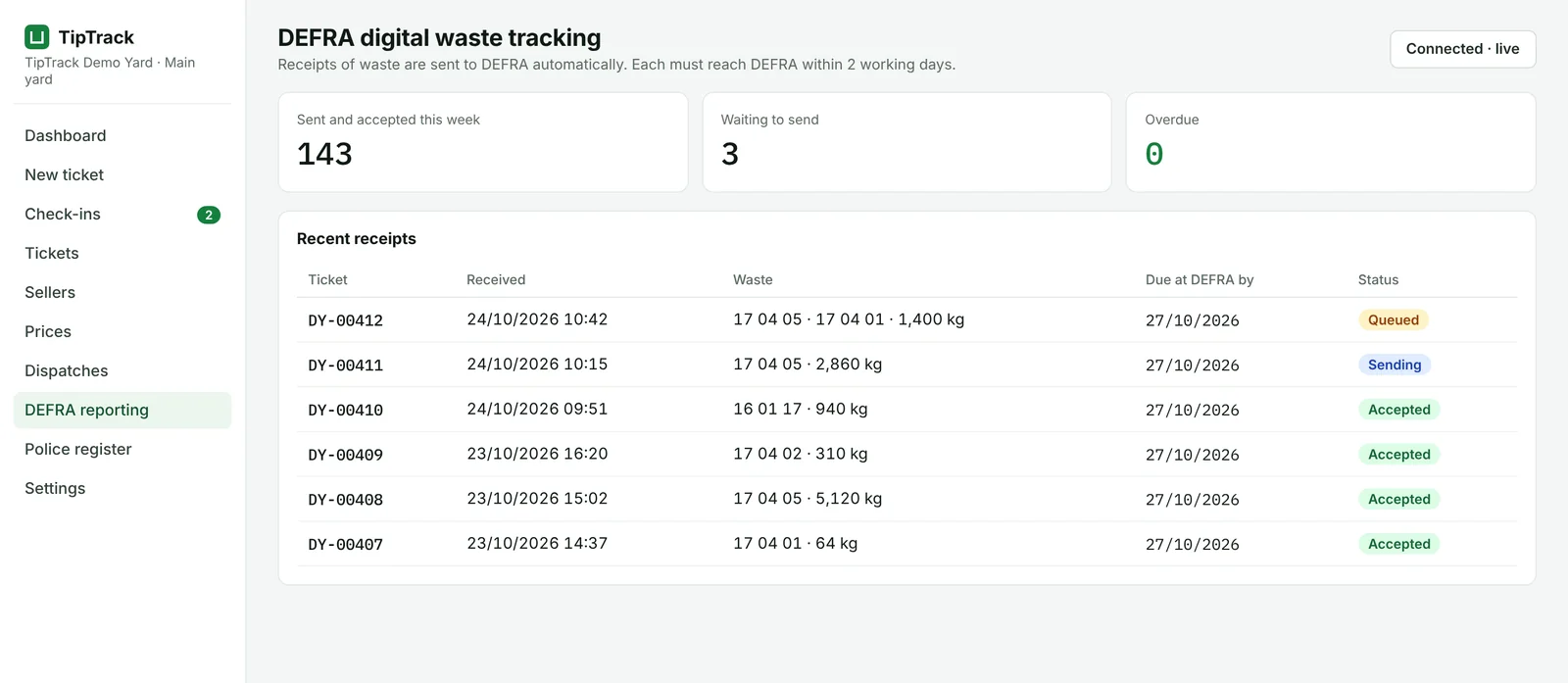
| Status | Meaning | What to do |
|---|---|---|
| Queued | Ticket completed, waiting to send | Nothing |
| Sending | Being sent to DEFRA now | Nothing. The ticket is locked until it finishes. |
| Accepted | DEFRA has the record | Nothing |
| Needs attention | DEFRA rejected it, or it couldn't be sent | Open the ticket, read the reason, correct it and send again before the due date |
Police and council inspections
Open Police register when the police or your council inspects. Filter by date range, seller, vehicle registration or ticket number.
- Print register prints the filtered list.
- Export inspection pack downloads the records, including copies of the ID seen, for the period you choose.
Records and ID copies are kept for 3 years from the purchase, as the Act requires.
Dispatches
Record metal leaving the yard in Dispatches: date, destination, haulier, vehicle, grades and weights. This gives you a running picture of stock in and out and the records you need for your own waste paperwork.
Your account
- Free trial: 30 days with every feature. The banner at the top shows the days left.
- Subscription: £50 a month for months 1–3, then £100 a month. 6-month minimum term, then month to month. See pricing.
- If your account isn't active (trial ended or paused), you can still sign in, view and export records, and DEFRA reporting of past loads carries on. New tickets are paused until it's active again.
- Leaving: email support@tiptrack.co.uk with 30 days' notice. Export your register first, because you must keep records for 3 years.